
Why You Need to Stop Using Your Deleted Items Folder as Storage
Do you use your Deleted Items folder as a safety net?
Don’t worry, we’ve all done it. We all get that somewhat important email that might be handy later but could be completely unnecessary.
You can’t permanently delete it because what if you need to find it later?
Most people would simply delete the email and leave it in their Deleted Items folder so they can retrieve it if needed.
However, it’s a bad idea to use your Deleted Items folder like an archive folder for a couple of reasons.
Deleted Items Storage Counts Toward Primary Inbox Limit
Every Microsoft 365 Business license (Basic, Standard and Premium) comes with 50 gigabytes (GB) of storage space for your primary mailbox. That includes your main Inbox, Sent Items folder, any custom folders you create and the Deleted Items folder.
So, even if you’re on top of keeping your Inbox nice and tidy, if you don’t clear out your Deleted Items Folder regularly, your primary mailbox limit eventually will be reached.
Instead, you should use your online archive mailbox, a separate mailbox with its own storage limit ranging from 50 GB to 1.5 terabytes (TB).
License | Primary Mailbox Limit | Online Archive Mailbox Limit |
M365 Business Basic | 50 GB | 50 GB |
M365 Business Standard | 50 GB | 50 GB |
M365 Business Premium | 50 GB | 100 GB-1.5 TB |
Exchange Online Plan 1 | 50 GB | 50 GB |
Exchange Online Plan 2 | 100 GB | 100 GB-1.5 TB |
Online archive mailbox allows you to keep emails you might need later but don’t need clogging up your inbox right now.
In the image below, you can see the folders with an orange outline make up the main mailbox, while the folders outlined in blue are part of the online archive mailbox.
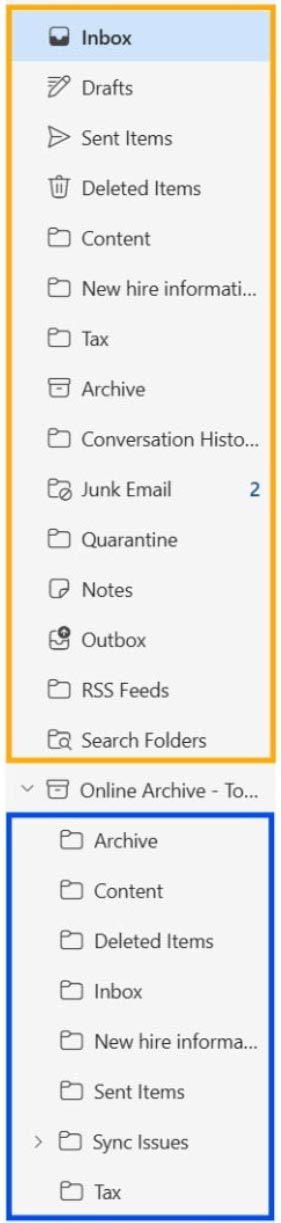
Simply drag an email from the primary inbox to a folder in the online archive mailbox to archive it.
By default, online archive mailbox is automatically enabled when you have used 96% of the storage space of your main mailbox.
However, if you wish to enable it before you reach that storage threshold, you’ll need to ask your IT team or managed service provider to do so.
Keeping your primary mailbox open allows you to continue sending and receiving emails. If you get too close to the primary mailbox storage limit, here’s what happens:
- Warning: When your primary mailbox reaches 98% full (49 GB), you will receive a warning.
- Can’t Send Email: At 99% (49.5 GB), you will no longer be able to send new emails.
- Can’t Send or Receive Email: at 100% (50 GB), you will no longer be able to send or receive emails.
Retention Policies Could Delete Emails in Deleted Items Folder
While many organizations don’t have companywide retention policies, we recommend implementing those to ensure no employee gets close to reaching their primary mailbox limit.
If your organization does utilize retention policies, you should know what they are.
For example, one such policy could permanently delete emails in the Deleted Items folder after 30 days. Using the Deleted Items folder as a secondary storage folder obviously wouldn’t work with this policy, as it could permanently delete an important email.
However, this policy allows you to recover an email you deleted within 30 days if you need it again. If you delete an email in the online archive mailbox, it goes to the Deleted Items folder in your online archive mailbox.
Learn More About Archive Mailbox
Do you find yourself keeping your deleted emails?
Contact us today to learn more about Microsoft’s Archive mailbox and how it can keep your primary mailbox free while ensuring you save important emails for when you need them.
Stay updated! Get tips and insights delivered to your inbox weekly by subscribing to our newsletter.