
How to Use the New HT Support App (2026)
Tired of filling out forms and dealing with drop-down menus to categorize your IT issue?
Now all you have to do is simply chat with us.
The new HT App is the fastest and easiest way to get the IT support you need.
Our old app offered two ways to get IT support: submitting a ticket or using chat.
Please use your best judgment when determining how to contact us. Calling our support team requires us to ask questions the app would automatically answer, and it takes us away from potentially more urgent issues.
With this new app, we’ve condensed everything into a simple chatbox, like how you communicate with your co-workers over messaging apps like Teams, Webex and Slack.
This new app offers:
- More efficient conversations, so you spend less time waiting on us
- A cleaner look
- A new desktop icon with our updated logo
Let’s dive into how to use the new app and when you would use it.
Two Ways to Use HT App
There are two main ways to use the HT App:
- Desktop icon on your computer
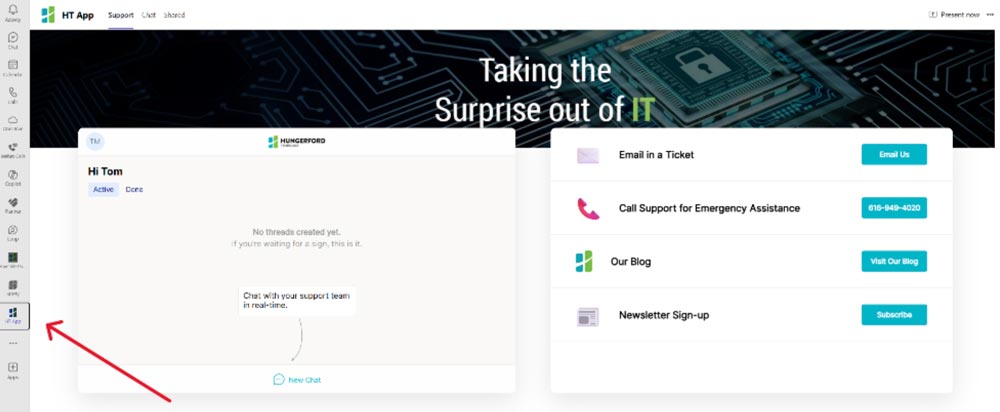
- App in Microsoft Teams
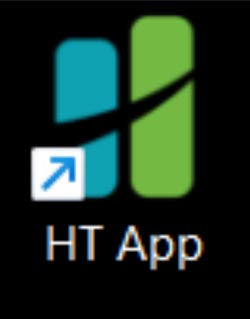
To use the desktop app, you should see an icon on your desktop titled “HT App.” It’ll look like this:
Alternatively, you can use the HT App in Microsoft Teams. We automatically added it to your toolbar on the left-hand side of the Teams window, as shown below.
When you use the app for the first time, you’ll be asked to log in using your work Microsoft account.
You’ll then see a chatbox where you can get help with your issue. Simply describe the issue that you’re having with as much detail as possible, and a ticket will be automatically created and assigned to a technician to help you.
You also can attach screenshots to help your technician see error messages or get a clear picture of what is not working.
If more context is needed, the chatbot will ask clarifying questions to help us diagnose the problem. The chatbot then will offer to troubleshoot with you, or you can request to speak with a live person.
The best part? No more flood of emails every time we update the ticket with new information.
Of course, we still keep you updated with our progress, but the updates come in chat message notifications rather than emails that get lost in your inbox.
At the top of the app, you’ll see “Active” and “Done” tabs. These are where your active chats and completed chats will live.
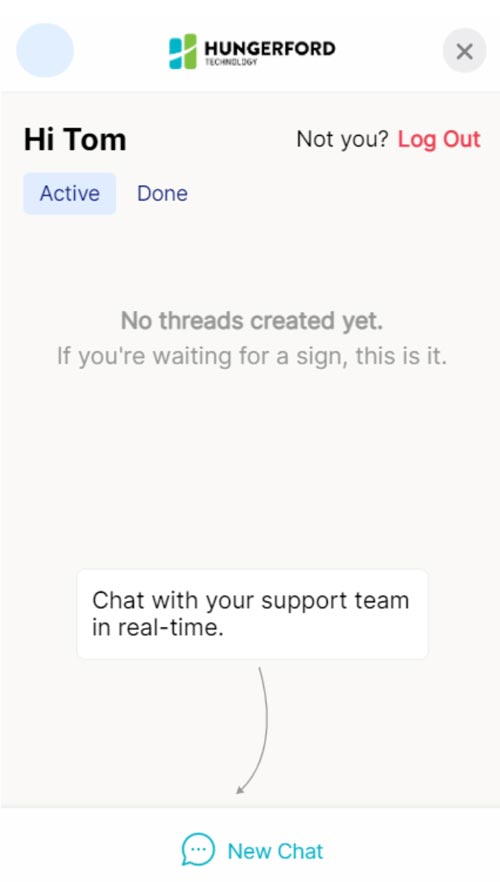
Even after a ticket is completed, you can reopen the ticket by finding the thread under the “Done” tab and sending a new message on that thread. The previous messages will be saved so we can quickly get up to speed and solve your new issue.
When Should I Use the App?
You should use the app for all nonemergency issues, such as password resets, account creation, onboarding requests, travel exclusion requests and more. If your problem is an emergency (like a server failure or a network outage), or if it’s after hours, please call (616) 949-4020 and press option 4.
You may send a nonemergency chat after hours, but it will not be answered until the next business day.
Please use your best judgment when determining how to contact us. Calling our support team requires us to ask questions the app would automatically answer, and it takes us away from potentially more urgent issues.
You also can email us at support@hungerford.tech if you prefer. Emailing that address will create a ticket and assign it to one of our technicians.
Emergency IT Services in West Michigan
Again, please call us at (616) 949-4020 and select option 4 in the event of an emergency, such as when your servers are down or you suspect a security breach.
Stay updated! Get tips and insights delivered to your inbox weekly by subscribing to our newsletter.