
How Do I Find a Missing Email?
Is there anything more frustrating than not receiving emails? Your co-worker claims they sent them, but your inbox is empty.
As great as technology is, sometimes it just fails, and it’s possible an email just didn’t reach your inbox. But if you’re constantly not receiving emails, there could be a bigger issue.
Here are 11 steps to help you find your missing email.
1.) Make Sure You Have Internet Access
Start with the basics. Sometimes the most obvious answer is the solution. Do a quick Google search to see if you’re connected.
If not, check your Wi-Fi settings in the Windows taskbar (bottom-right corner of your screen).
2.) Search for It
It’s possible the email you’re looking for got lost in the shuffle of your inbox. Outlook’s search function — located at the top of the window — is pretty intuitive, letting you search all folders or specific ones.
New Outlook has a couple more features than classic Outlook, like separating your searches between mail, files and people.
If you have a paid Copilot license, you can ask it to find emails from specific people within a specific timeframe. The more details you include, the more focused Copilot’s search will be.
3.) Use Send/Receive and Sync Buttons
Outlook constantly syncs your folders to ensure you have the most recent emails. But sometimes, automatic syncing can fail.
The good news is you can manually sync your folders so Outlook can retrieve any undelivered emails.
In classic Outlook, you can find the “Send/Receive All Folders” button under the “Send/Receive” tab.

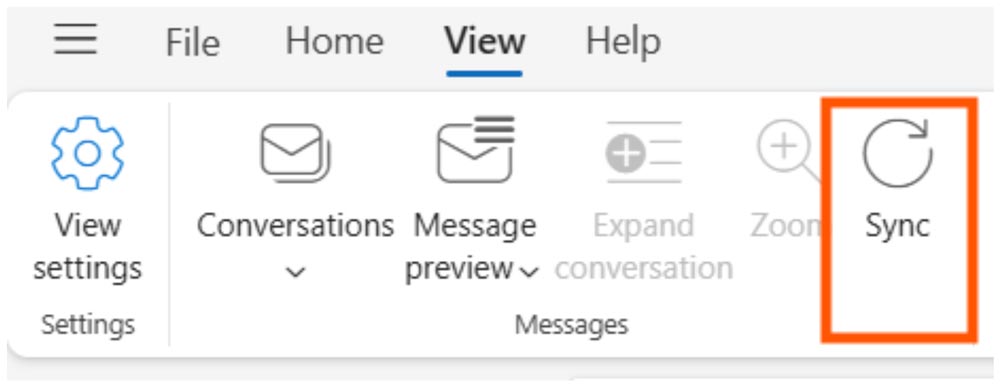
In new Outlook, “Send/Receive” is replaced by “Sync,” which is located under the “View” tab.
4.) Check Junk Folder
It seems like more times than not, an email you can’t find ends up in the junk folder. Depending on your spam filters, Microsoft could be more stringent in categorizing emails as spam.
You can move the message from your junk folder to your inbox by right-clicking the message, hovering over “Move” and selecting “Inbox.” A pop-up box will ask if you don’t want Outlook to send messages from that sender to the junk folder in the future.
5. Check Other Tabin Focused Inbox
If you use Focused Inbox, your inbox is broken into two categories: Focused and Other. Microsoft tries to sort high-priority emails in Focused and low-priority emails in Other. But it occasionally makes mistakes.
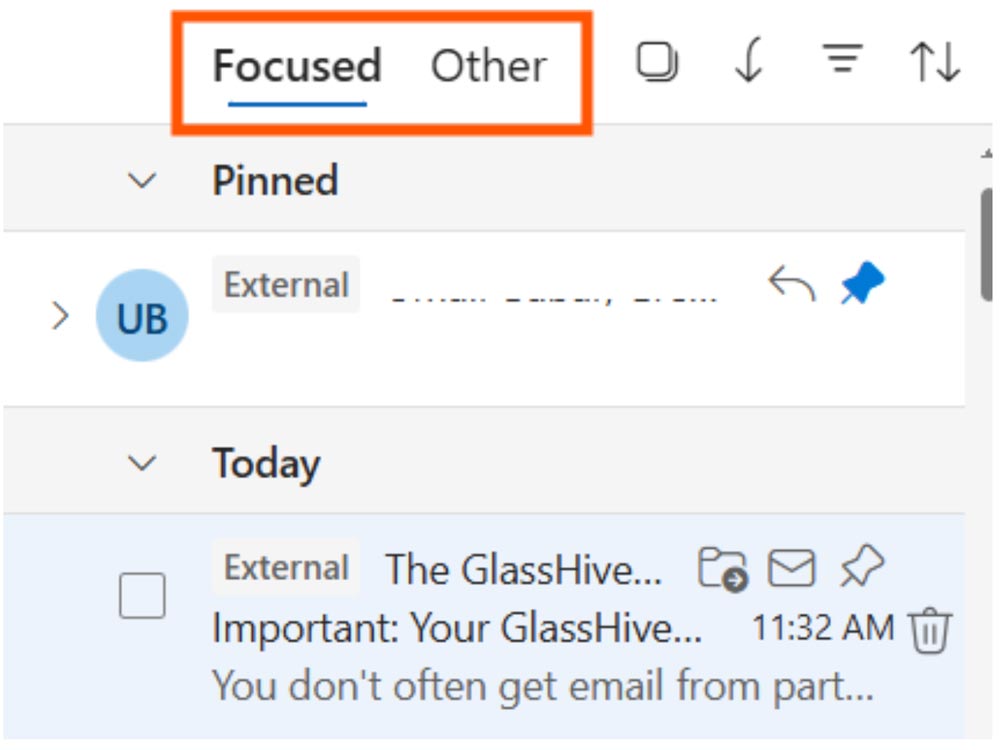
If important emails are always going to the Other inbox, you can right-click the message and tell Outlook to always move messages from this sender to the Focused section.
Aggressive email filters that misplace emails can be frustrating, but it’s better than the alternative: a flood of spammy emails that could be malicious.
6.) Check Quarantine
If Microsoft determines an email is high-confidence spam, it’ll send it to your quarantine. Quarantined emails can be retrieved for 30 days before they are automatically removed.
Go to your quarantine page to see if your lost email is there; you can’t access the quarantined emails from the Outlook app.
To send the email to your inbox, select the message and select “Release email.” If the email is from a sender you trust, you can select the checkbox next to “Report message as having no threats,” which tells Microsoft this sender is safe.
Note: You may have to do this multiple times before Microsoft learns to send these messages to your inbox.
7.) Check Rules
It’s possible that a rule was created to send emails to the trash or another folder automatically.
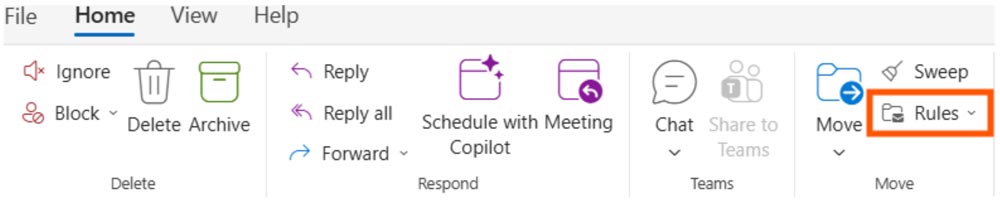
Under the Home tab in both versions of Outlook, select “Rules” and select “Manage rules.”
8.) Check Downdetector
Sometimes a missing email can be a Microsoft issue beyond your control.
Check Downdetector for Microsoft outages. If several people are experiencing issues, there’s a good chance an outage is affecting your ability to receive emails.
Additionally, check for recent news articles about Microsoft outages.
9.) Restart Outlook
Programs can crash, and while it may look like everything is fine on your end, it’s possible that behind-the-scenes tasks aren’t happening. That means emails could be sitting in purgatory because they can’t be delivered.
Close Outlook and reopen it to see if you can find that email.
10.) Restart Your Computer
Taking it a step further, sometimes a computer restart is needed.
If you don’t shut down your computer at night, a restart generally fixes many issues, including performance problems.
11.) Contact Your IT Team/MSP
If you’ve exhausted all other options and you still can’t find your email, contact your IT department or your managed service provider.
They can tell you if backend issues are preventing you from receiving emails from particular senders.
Protect Your Email
Aggressive email filters that misplace emails can be frustrating, but it’s better than the alternative: a flood of spammy emails that could be malicious.
If you’d like us to review your Microsoft 365 security settings, contact us. We’ll discuss what configurations you should enable to protect you and your organization from cyberattacks.
Stay updated! Get tips and insights delivered to your inbox weekly by subscribing to our newsletter.